Exercise 5: Add segues to define the navigation
The primary goal of this lab is to teach you how to display a second View Controller using segues. The finished storyboard should look something like this:
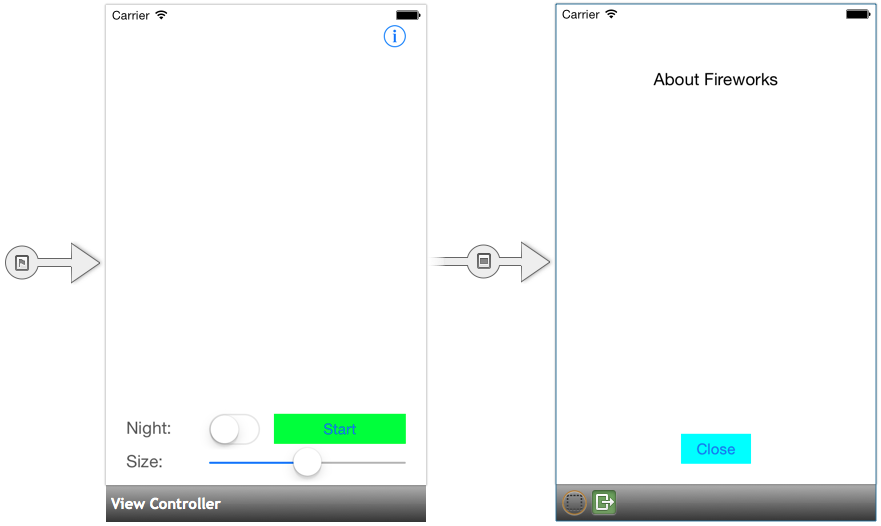
To complete the exercise, you will need Visual Studio for Windows or macOS with the Xamarin development tools installed. You will also need either an emulator/simulator or a device to run the exercise on. Please see the setup page if you need help installing the Xamarin development environment.
Open the starter solution
This exercise is a continuation of the previous exercise. You can use your existing solution or begin from the prior Exercise 4 > Completed solution in your copy of the cloned or downloaded course materials.
Remove the launch code
- Open ViewController.cs and delete the partial method
buttonAbout_TouchUpInside. - Open Main.storyboard.
- Select the about button.
- In the Properties pane, go to the Events section and clear the reference for Up Inside.
Add a segue to the screen
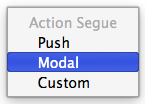
- Control-drag from the about button to the About View Controller and select a Modal Segue.
- Run the application.
Exercise summary
Congratulations! In this lab, you displayed a second screen using a modal segue.
You can view the completed solution in the Exercise 5 > Completed folder of your copy of the cloned or downloaded course materials.