Exercise 4: Add logic to your Tip Calculator
In this exercise, we will add the business logic to our Tip Calculator app by handling the tap event on the button and calculating the tip amount. This logic is the Model for our application.
To complete the exercise, you will need Visual Studio for Windows or macOS with the Xamarin development tools installed. You will also need either an emulator/simulator or a device to run the exercise on. Please see the setup page if you need help installing the Xamarin development environment.
Open the starter solution
This exercise is a continuation of the previous exercise. You can use your existing solution or begin from the prior Exercise 3 > Completed solution in your copy of the cloned or downloaded course materials.
Handle button taps
- Open MyViewController.cs.
- At the bottom of your
ViewDidLoadmethod, add an event handler for theTouchUpInsidemethod on yourcalcButtonfield.
Since we are using fields local to ViewDidLoad, you will need to add an inline delegate handler using either an anonymous delegate, or a lambda expression. If you would prefer to use a traditional delegate method handler, move the field definitions for your three controls to the class so you can access them from the separate method. The provided code below will use a lambda.
public override void ViewDidLoad()
{
    base.ViewDidLoad();
    ...

    View.AddSubviews(new UIView[] { totalAmount, calcButton, resultLabel });

    calcButton.TouchUpInside += (s, e) => {
    };
}
Add calculator logic
- In your method handler, retrieve the current value of the
totalAmountfield using theTextproperty. - Convert the
stringvalue into a double usingDouble.TryParse. - Multiply the result by 0.2 to get 20% of the total.
- Finally, store the resulting text into the
resultLabelfield by setting theTextproperty. Format it usingstring.Formatso it matches the default text we set earlier.
public override void ViewDidLoad()
{
    base.ViewDidLoad();
    ...
    View.AddSubviews(new UIView[] { totalAmount, calcButton, resultLabel });

    calcButton.TouchUpInside += (s, e) => {
        double value = 0;
        Double.TryParse(totalAmount.Text, out value);
        resultLabel.Text = string.Format("Tip is {0:C}", value * 0.2);
    };
}
Dismiss the keyboard
- In the
calcButtontouch event handler, call theResignFirstRespondermethod ontotalAmountto dismiss the keyboard when the button is pressed.
 calcButton.TouchUpInside += (s, e) => {
    ...
    totalAmount.ResignFirstResponder();
};
Build the application
- Build and run the application.
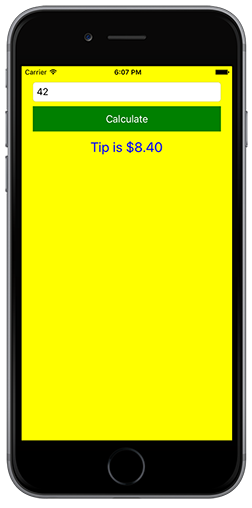
- Enter a total amount and tap the "Calculate" button. It should display a 20% tip amount.
Exercise summary
In this exercise, you have added behavior to the Tip Calculator controls. You are now officially an iOS developer! :)
You can view the completed solution in the Exercise 4 > Completed folder of your copy of the cloned or downloaded course materials.